There are two ways to control High DPI Scaling for your Qt 4.8.5 compiled Windows executable:
– Manually set High DPI Scaling via right-clicking on your Windows executable and changing it in the Compatibility tab. However, this modifies the Windows Registry. And we don’t want to deal with it.
OR
– Embed an XML .manifest file into the Windows executable itself so that it is always reliably set every time the program is run. And if the user moves the executable to another location, it will still run with our intended high dpi scaling settings.
1. Create a basic text file with this EXACT content and save as your-exe-name.exe.manifest in your project folder.
<?xml version="1.0" encoding="UTF-8" standalone="yes" ?>

<assembly xmlns="urn:schemas-microsoft-com:asm.v1" manifestVersion="1.0" xmlns:asmv3="urn:schemas-microsoft-com:asm.v3">

   <application>

      <windowsSettings>

         <dpiAware xmlns="http://schemas.microsoft.com/SMI/2005/WindowsSettings">true</dpiAware>

         <dpiAwareness xmlns="http://schemas.microsoft.com/SMI/2016/WindowsSettings">PerMonitorV2</dpiAwareness>

      </windowsSettings>

   </application>

</assembly>
2. Create a basic text file with this content and save as resource.rc in your project folder.
#include <windows.h>

CREATEPROCESS_MANIFEST_RESOURCE_ID    RT_MANIFEST    "your-exe-name.exe.manifest"

...

1 VERSIONINFO

...
3. Add this to your Qt project’s .pro file
QT += core gui opengl svg

...

#remove Qt default embedded manifest

win32 {

     CONFIG -= embed_manifest_exe

}
RC_FILE = resource.rc
4. Compile.
If everything worked out correctly, you can use a free program called Resource Hacker, that can read and edit Windows executable embedded resources like icons and manifest, to check your Qt compiled executable has an embedded manifest file. If so, then you can run the executable to see if it renders correctly. Good luck!
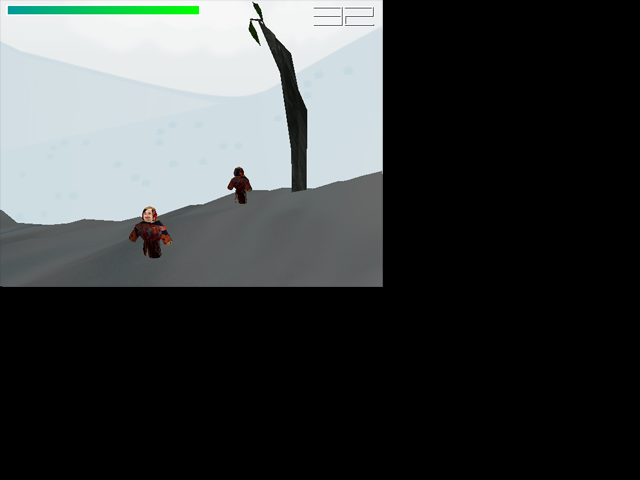 Incorrect high dpi scaling in fullscreen mode
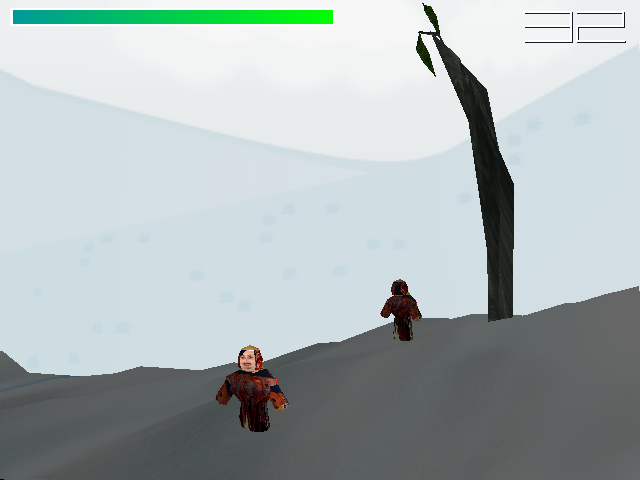
Correct high dpi scaling in fullscreen mode
For reference, here was my initial solution for the same problem back on my Windows 10 machine. I was using the right-click executable compatibility properties high dpi scaling settings, which only affects that local executable using a registry key. It would explain why the effect didn’t work on my new Windows 11 machine. Noob issues. LOL. Anyway, the more effective way is to embed the manifest, folks.