



By Chongchen Saelee
When you want to optimize HTML processing speed, you might want to minify the HTML code. This is done by removing all whitespaces, assuming your code is strongly-typed and syntax and structure is all correct. You can do this manually, which will be a pain, or use the help of an advanced text editor.
Download the latest version of Notepad++ (as of today, the latest version is 6.8.6). It’s free and way more robust than your standard Windows Notepad (obviously, if you can’t tell by the name).
UPDATE: More Comprehensive Minify HTML (Remove Whitespace + Line Breaks)
I figured out how to use regular expressions (RegEx) via Search and Replace which really finetunes the minifying process. Check this out:

1. Go to Search menu.
2. Click Replace.
3. Enable Regular Expression radio button.
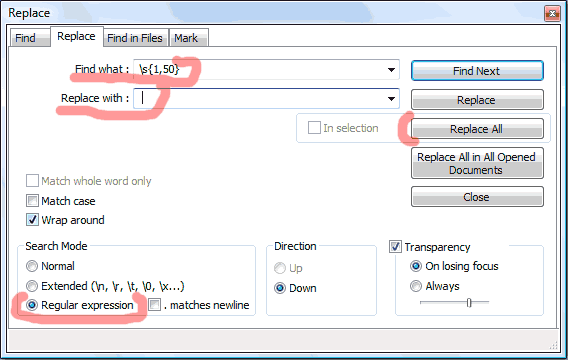
4. Type in Find what: \s{2,50}
5. Type in Replace with: _ (type single space instead of underscore. not do not type \s)
6. Find the following regex and replace them as such:
| Find what: | Replace with: | Explanation |
| \s{2,50} | _ | Replace with single space, not an underscore. And don’t type \s. What you’re doing here is finding any matches for spaces \s with lengths between 2 and 50. The delimiter can actually be more than 50, but it’s not reasonable. You can put whatever you want if you do it yourself. You want only one space between any two nonspace characters. |
| >\s{2,50} | > | Get rid of any space between closing tags and first nonspace character. |
| \s{2,50}< | < | Get rid of any space before opening tag and possible nonspace character. |
| >\r\n | > | Remove any linebreaks, aka “newline” aka carriage return \r + line feed \n that may exist after closing tag. |
| \r\n< | < | Remove any linebreaks before opening tag. |

Of course, you can always save out the steps as a macro. Just follow the instructions from previous tutorial (below). But do note, when you save out this minified HTML file, don’t save over your original code. You will lose all the formatting and Notepad++ won’t be able to fold your code for you next time you want to edit it. So save a copy.
Otherwise, you can alter your shortcuts.xml file in %AppData%\Roaming\Notepad++ with this xml:


Copy the xml into the Macros XML Group in your shortcuts.xml file. WARNING!! Make sure you backup your original shortcuts.xml file first before you alter it. I can’t guarantee you it will work. Also, make sure you’re altering the shortcuts.xml file in your %AppData%/Roaming/Notepad++ folder instead of the one in your install folder. Otherwise, just record the macro manually following the steps above.
Basic Minify HTML (Removing Line Breaks)

1. Go to Search menu.
2. In Search Mode, enable Extended (\n, \r, \t, \0, \x…) radio button.

3. Type in Find what: >\r\n. What you’re doing is replacing any New Line \r\n, which is comprised of Carriage Return \r + Line Feed \n found after a closing bracket > with a regular closing bracket. This brings the next line back to the preceding line.
4. Type in Replace with: >
5. Click Replace All.
6. Type in Find what: \r\n<
7. Type in Replace with: <
8. Click Replace All.

And to make this process even faster, thank goodness for macros. You can use Notepad++ macro recorder to record these steps in advanced and just call them again the next time you want to minify your HTML. How convenient!
How To Record an HTML Minify Macro:
1. Go to Macro menu.
2. Click Start Recording.

3. Repeat the steps 1 to 8 for Search and Replace as listed above.
4. Go to Macro menu, click Stop Recording.
5. Go to Macro menu, click Save Current Recorded Macro…
6. Type in “MinifyHTML” or whatever you desire.

7. Now when you click Macro menu, you will see your previously recorded macro “MinifyHTML” and all you have to do is click that for immediate minifying! Sweet!

Alternatively, but not best results:
1. Go to Edit menu.
2. Go to Blank Operations
3. Select ‘Remove Unnecessary Blank and EOL’ or ‘EOL to Space’.
But this result leaves space padding for content inside tags, which is optimal minify-sation. I haven’t found a feature in the Blank Operations that complete the minify process either.
Summary
This method is only to remove linebreaks. Of course, the comprehensive minify process would include fixing unclosed HTML tags (those that require it anyway), minimizing spaces in innerHTML content, removing comments, etc. Anyway, I hope this very basic method helps!